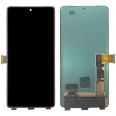
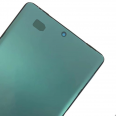
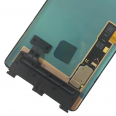
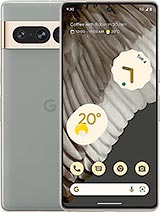
Google Pixel 7 Pro OLED Screen: see everything like the first day again
Have you dropped your Google Pixel 7 Pro and now there is a crack across the screen, a green line that will not disappear, or a touchscreen that has a mind of its own? It has happened to many of us. This phone's curved edges look beautiful, but they are also the part most vulnerable to damage from a drop. This Google Pixel 7 Pro screen is a complete screen with OLED quality. It arrives ready to install and is compatible with the GP4BC and GE2AE models, the references for the Pixel 7 Pro.
What this Google Pixel 7 Pro OLED screen offers
The Pixel 7 Pro comes from the factory with a 6.7-inch LTPO OLED panel, a QHD+ resolution of 3120 x 1440 pixels and a variable refresh rate from 1 to 120 Hz. With an OLED screen, each pixel produces its own light, so blacks are truly black because the pixel switches off, contrast is excellent and the Always On Display uses very little battery. Cheaper technologies cannot achieve the same results.
And the question we are asked most often: brightness. This replacement provides the same brightness as the original screen:
- Up to 1000 nits with HDR content.
- Up to 1500 nits peak brightness in direct sunlight.
- Colours, sharpness and smoothness at 120 Hz matching the panel originally fitted to your phone.
In short, you will be able to read your phone on the terrace at midday just as you did before.
What is included in the box (plus a couple of gifts)
This is a complete screen: OLED panel, touchscreen glass and connection flex cable, all assembled as a single part. This saves you from the most delicate part of the repair: separating the glass from the panel. We also include a screen protector free of charge, so your new screen does not end up like the old one. And as not everyone has a precision screwdriver at home, you also receive a tool kit including screwdrivers, picks, a pry tool and a suction cup.
Fingerprint recognition after replacing the Google Pixel 7 Pro screen
This is the issue that appears most often in forums. The Pixel 7 Pro has an optical in-display fingerprint sensor, and Google calibrates it to the panel fitted at the factory. You replace the screen, the phone turns on and everything works... but fingerprint recognition does not. It is not because the screen is faulty. One step is missing.
The screen is compatible with the fingerprint sensor, but after installing it you must calibrate it using Google's official tool. It is free and takes just a few minutes:
- Switch off the phone and press and hold the power and volume down buttons at the same time until it enters Fastboot mode.
- Connect it via USB to a computer with Chrome and go to pixelrepair.withgoogle.com/udfps.
- Follow the instructions. The website installs a small update that adjusts the sensor to the new screen.
- Restart the phone and register your fingerprints again.
A tip shared by many users: if the tool displays an error, check that the phone is in Fastboot mode and not Rescue mode. That is almost always the reason.
When should you replace your Pixel 7 Pro screen?
A cracked glass panel is easy to spot. Other symptoms are less obvious, and many people assume they are caused by a software fault:
- Ghost touches or areas where the touchscreen does not respond.
- Green or pink lines that remain visible or appear and disappear.
- Black spots that gradually become larger: this is internal OLED damage and it will not repair itself.
- Flickering at low brightness or unusual colours around the curved edges.
How to replace the Google Pixel 7 Pro screen
This is a medium-difficulty repair. It is not impossible, but it requires patience. If you are unsure, take the part to a trusted technician. Many repair shops are happy for you to bring your own replacement part, making the repair considerably cheaper. If you decide to do it yourself, here is a summary:
- Switch off the phone and remove the case and any screen protector.
- Heat the edges with a hairdryer or a heat gun set to a low temperature. The adhesive needs to soften; the phone does not need to become hot.
- Place the suction cup near the bottom edge, lift slightly and insert the pick. Take extra care around the curved sides, as this is where the glass can crack if you apply too much force.
- Carefully open the screen. The flex cable is still connected, so do not pull.
- Disconnect the battery first and then disconnect the screen connector.
- Thoroughly clean any adhesive remaining on the frame. If you leave residue behind, the new screen may not sit flush.
- Connect the new screen without sealing it, switch on the phone and check the image, touchscreen and sensors.
- If everything works correctly, apply new adhesive, close the phone and leave some weight on top for a good while.
- Finish by carrying out the fingerprint calibration explained above.
One more tip: do not touch the connectors with your fingers and discharge any static electricity before you begin. It may seem unimportant, but a static discharge can damage a new OLED panel.
• Product Weight: 0.11 kg.The technical specs of Google Pixel 7 Pro
can help you to choose the correct repair part for your device. Make sure your model reference is the same as this element. Here are some tech specs to help you:
- Brand: Google
- Google Pixel 7 Pro Size: 162.9 x 76.6 x 8.9 mm.
- Release date: 2022, October 06.
- Weight: 212 g.
- Screen specs: LTPO AMOLED, 120Hz, HDR10+, 1000 nits , 1500 nits.
- Screen size: 6.7 inches, 110.6 cm2.
PVP:
SNK.LCDGOOPIX7P38.76€ AvailableInStockNewCondition