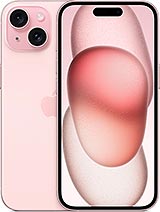
iPhone 15 OLED Screen
All it takes is one silly drop, the kind where your phone slips out of your pocket just as you sit down in the car. You end up with a spiderweb crack in the corner, a green line running from the top to the bottom of the screen, or an area that stops responding when you try to type. This iPhone 15 OLED screen is a complete assembly: the glass, touch panel and OLED panel come pre-assembled as a single part. That means you can replace everything at once, without struggling with laminations or polarising layers.
First, the basics. This is an OLED replacement part, using the same technology as the screen fitted to the iPhone 15 at the factory. Each pixel produces its own light and switches off completely to display black, with no backlight behind it. That is why blacks are truly black and the contrast is nothing like that of a cheap incell LCD screen, which can change the look of your phone from the moment you fit it.
iPhone 15 screen specifications
Apple fitted this model with a 6.1-inch Super Retina XDR display featuring Dynamic Island—the first time the island appeared on a non-Pro iPhone. These are the specifications the iLevante team uses to compare each replacement screen:
- Resolution: 2556 × 1179 pixels at 460 ppi.
- Contrast ratio: 2,000,000:1 (typical).
- Colour: wide P3 colour gamut, HDR10 and Dolby Vision compatible, with True Tone.
- Refresh rate: 60 Hz. The standard iPhone 15 uses an LTPS panel without ProMotion, so the 120 Hz screens you may see advertised are for Pro models and are not suitable here.
One interesting detail: Apple rejected panels from one of its suppliers for this model. The issue was light leakage around the Dynamic Island cut-out, and production ended up being handled almost entirely by Samsung Display. This is exactly the area we pay close attention to when testing a batch: there should be no halos or unusual brightness around the edge of the island, especially against a black background with the brightness turned all the way up.
iPhone 15 OLED screen brightness: the same nits as the original
This is the big advantage over cheaper alternatives. This OLED screen has brightness very similar to the original, which we have measured at:
- 750–800 nits of peak brightness.
In practice, you can read a message on a sunny terrace at midday without shielding the screen with your hand. HDR videos also retain the bright highlights that make a sunset look like a sunset. During testing, the iLevante team also considered a detail few people mention: the iPhone 15 panel uses PWM dimming at around 480 Hz. If you notice flickering at low brightness, you should notice it just as before—no more, no less. If you are sensitive to it, it is best to turn on Reduce White Point in Accessibility and avoid lowering the brightness too much.
Signs that your iPhone 15 screen needs replacing
A crack is the obvious sign. Other, less noticeable symptoms can also indicate that the panel is damaged:
- Green, pink or white lines that appear after an impact, sometimes several days later.
- Black spots that spread: the OLED is damaged internally, and the spots almost never stay the same size.
- Ghost touches, such as apps opening by themselves or the keyboard typing on its own.
- Dead zones where the touchscreen does not respond, often in the corners.
- Flickering or a black screen while the phone still vibrates, rings and receives notifications.
A tip from the repair bench: if the screen is completely black but the phone shows signs of life, check the connector first. Sometimes an impact has simply loosened it slightly.
What’s included with your iPhone 15 OLED screen
You receive the complete screen, ready to connect. At iLevante, we include what you need so the repair does not stop halfway: a free screen protector, which is especially useful because a brand-new screen is the one you will hate to scratch most, and a tool kit with picks, a suction cup, a pry tool and screwdrivers. We also include a dust filter mesh for the screen’s seal. This mesh often tears or gets covered in adhesive when you remove the old screen. If it is missing, dust can eventually affect the sound during calls.
How to replace the iPhone 15 OLED screen, step by step
This is a repair of medium difficulty. Allow between one and two hours if it is your first time. The iPhone 15 has one feature that can catch out anyone used to older models: the battery cannot be disconnected while replacing the screen. That is why it is a good idea to discharge it below 25% and never use metal tools near exposed contacts.
Before opening the phone
- Turn off the phone and disconnect any cables.
- If the glass is badly broken, apply overlapping strips of packing tape. This will reduce the risk of cuts and help the suction cup grip.
- Check the frame with a flashlight held at a shallow angle. A corner pushed in by the impact is the most common cause of ghost touches after a screen replacement. Straighten it before fitting anything.
The process, summarised by the iLevante team
- Remove the two P2 pentalobe screws from the bottom edge, on either side of the charging port.
- Warm the bottom edge with a hairdryer or heat gun until it feels warm to the touch. Do not overheat it, as heat can damage the battery. Wait up to a minute for the adhesive to loosen.
- Use the suction cup to create a gap and insert a pick. Be careful about how far you insert it: 3 mm along the bottom and left edges and 5 mm along the right edge. There are spring contacts around the perimeter, as well as cables near the mute switch and halfway along the volume-button side. Never insert the pick between the panel and its frame.
- Release the clips at the bottom-right, top-right and top-left corners. The screen opens like a book towards the left-hand side, which is the opposite of what many people expect.
- Remove the connector covers using a Y000 tri-point screwdriver: one 0.9 mm screw for the front sensor, another 0.9 mm screw for the screen, and two 1.3 mm screws for the lower cover. Keep them separate, as putting the wrong screw in a hole can damage the board.
- Transfer the ambient light sensor, including its bracket and cable, to the new screen, along with the front sensor assembly. Work slowly, as these parts are tiny and are essential for automatic brightness.
- Clean the frame with isopropyl alcohol, fit the dust filter mesh and new adhesive, and connect the screen before sticking it down. Test the image, touch response in all four corners, the speaker and the proximity sensor by making a call.
- Close the phone and keep the screen under light pressure for at least 30 minutes so the adhesive can seal properly.
Important note: once the phone has been opened, its original IP68 water resistance is no longer guaranteed, even if you fit a new adhesive seal correctly. Apply the adhesive carefully, but do not put the phone in a swimming pool to test it.
Common problems after replacement and how to avoid them
Most of the questions we receive after an installation come down to three things. The first is a connector that has not been seated properly, which can cause intermittent touch response, a flickering image or restarts every few minutes. To fix it, disconnect the connector and press it back into place until you feel it click. The second is the warped frame mentioned earlier, which presses against the panel and causes ghost touches. The third is the easiest to avoid: putting a long screw into a short screw hole. It is worth taking two minutes to keep the screws organised.
Face ID, True Tone and the unknown part warning
If you carefully transfer the front sensor assembly, Face ID will continue to work. On the iPhone 15, the proximity sensor is inside the Dynamic Island and forms part of the facial recognition module, so handle this component as carefully as you would glass.
When you use a screen that is not made by Apple, iOS may display an unknown screen warning under Settings > General > About > Parts and Service History. The warning does not affect everyday use: touch, brightness and colour will work as usual. The only potential drawback is a lower resale value if you trade the phone in one day. True Tone has changed with different iOS versions. Up to iOS 17.6, it was disabled even with original screens, while since iOS 18 Apple has included a Repair Assistant that handles replaced parts more effectively. Update your iPhone to the latest version of iOS before checking whether True Tone works.
• Product Weight: 0.18 kg.The technical specs of Apple iPhone 15
can help you to choose the correct repair part for your device. Make sure your model reference is the same as this element. Here are some tech specs to help you:
- Brand: Apple
- Apple iPhone 15 Size: 147.6 x 71.6 x 7.8 mm.
- Release date: 2023, September 12.
- Weight: 171 g.
- Screen specs: Super Retina XDR OLED, HDR10, Dolby Vision, 1000 nits , 2000 nits.
- Screen size: 6.1 inches, 91.3 cm2.
PVP:
SNK.AS14016445.90€ AvailableInStockNewCondition